

DragonFrame
“The digital roll-up”
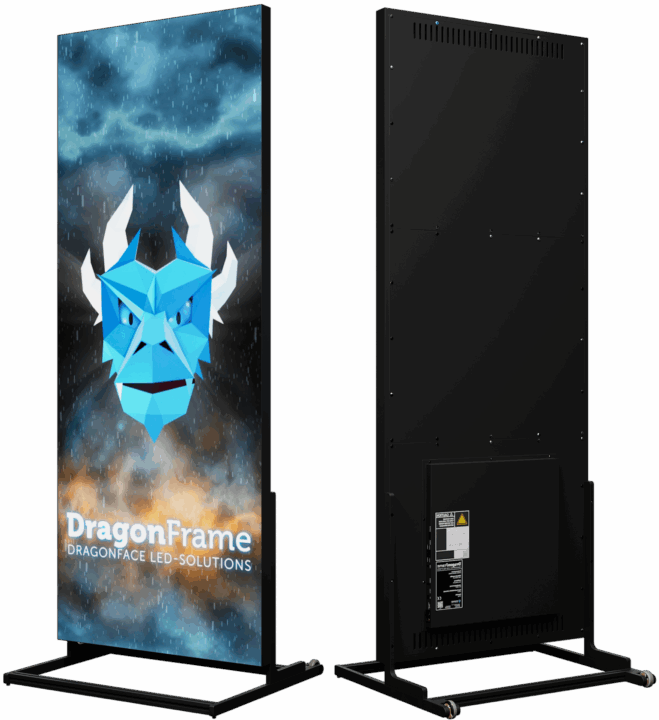
DragonFrame – simple design meets technology.
Our smart DragonFrame for trade fairs and events. With our LED customer magnet, you attract visitors to your stand and the conversation is yours. Rent or buy? – Your decision!
Downloads & Help
Software
 HDSet (Windows) |
 HDPlayer (Windows) |
 LEDArt (iOS) LEDArt (iOS) |
 LEDArt (Android) LEDArt (Android) |
The DragonFrame
indoor
Minimal effort, maximum impact!
| Dimensions: | 768 * 1920 mm |
| Weight: | 46 kg |
| Resolution: | 384 * 960 px |
| Viewing distance: | > 2 m |
| Viewing angle: | approx. 140° |
| Brightness: | 1000 Nits |
| Connections: | HDMI | LAN | WIFI | USB |
| Installation: | Wall mounting | Stand | Ceiling mounting |
| Memory: | 8 GB |
| Audio input: | 3.5 mm jack |
| Pixel pitch: | 2 mm |
| Multilink: | up to 4 frames |
| Protection class: | IP20 |
| Flightcase: | optionally available with wheels |
The DragonFrame
outdoor
Stay visible outdoors in rain or shine!
| Dimensions: | 768 * 1920 mm |
| Weight: | 55 kg |
| Resolution: | 256 * 640 px |
| Viewing distance: | > 3 m |
| Viewing angle: | approx. 140° |
| Brightness: | 5000 Nits |
| Connections: | HDMI | LAN | WIFI | USB |
| Installation: | Wall mounting | Stand | Ceiling mounting |
| Memory: | 8 GB |
| Audio input: | 3.5 mm jack |
| Pixel pitch: | 3 mm |
| Multilink: | up to 4 frames |
| Protection class: | IP65 |
| Flightcase: | optionally available with wheels |
How to Master the DragonFrame – Tutorial
FAQ: Hardware
HDMI input not working
Check whether everything is set up and connected correctly in the hardware settings?
Note that the setup for single frame operation differs from multi-frame operation.
Content plays distorted
Lorem Ipsum Lorem IpsumLorem IpsumLorem IpsumLorem IpsumLorem IpsumLorem IpsumLorem IpsumLorem IpsumLorem IpsumLorem IpsumLorem IpsumLorem IpsumLorem Ipsum
Media from USB stick is not played
- In the HDPlayer software, the USB port must be activated and the setting must be transferred to the DragonFrame and saved.
- Is the content in the correct format on the USB stick?
No audio output via the stereo jack output
- Is the volume turned up in the HDPlayer software?
- Is the mute button active in the HDPlayer software?
- Is the connected speaker system set to the correct input and the volume turned up?
FAQ: Software
HD-Player DragonFrame is not displayed when sending the content
- Which screen was created for the content?
- Make sure that the “Screen Settings” are set correctly
- Make sure that the correct DragonFrame is selected in the “Device-List”
HD-Set displays message “Device Timeout”
- Check the network connection of the DragonFrame
- Reboot the DragonFrame
- Check in the HD-Player software whether the current firmware has been updated
HD-Set Connection Settings shows too many network ports
Is the DragonFrame selected in the start screen of the HD-Set software?
Interconnected DragonFrames display the image incorrectly
- Check in the HD-Set software in the “Connection Settings” whether the network ports are connected correctly
- In the “Connection Settings”, send the set configuration again by clicking on “Send”
Take a look around – DragonFrame 3D View
Contact us for a non-binding inquiry and to tell us about your project. We look forward to hearing from you!